
Which way works for each chat app
Each chat app accepts a different kind of animated sticker, so pick the route by the app you send in. Checked on November 10, 2026.
| Chat app | What it accepts | Route from a video |
|---|---|---|
| Messages | Live Stickers made from Live Photos, which Apple's guide lists as the way to make animated stickers on iPhone. | Turn the video into a Live Photo, then add it as a sticker in Photos. |
| Animated stickers at 512 by 512 pixels, up to 500 KB and up to 10 seconds, according to WhatsApp's help page for iPhone. | A sticker app that exports to WhatsApp, after you trim the clip short. | |
| Telegram | WebM video stickers with the VP9 codec, no sound, one side of 512 pixels, up to 3 seconds and 256 KB, per Telegram's sticker documentation. | A sticker app that exports to Telegram, or a converter. |
| Signal | APNG files up to 3 seconds and 300 KB each, per Signal's support page. GIF files are not accepted. | Signal's sticker creator in a web browser or on Signal Desktop. An iPhone alone cannot finish it. |
How to make animated stickers on iPhone from a video in the Photos app
Not directly. Apple's Live Stickers come from Live Photos, and for a plain video Photos lifts the subject out of a paused frame as a still sticker. The route that works is to turn the video into a Live Photo first, then make the sticker from that. Apple's iOS 17 guide already covers Live Stickers.
Step 1: turn the video into a Live Photo
These apps say on their App Store listings (checked on November 10, 2026) that they turn a video into a Live Photo:
- Convert: GIF Maker and Wallpaper by Cardinal Blue converts video to Live Photo, with trim, speed and crop. It needs iOS 17.6 or later, is free with no in app purchases listed, and has 4.8 stars from 3.8 thousand ratings. Two reviews from 2021 report failures on some videos.
- Peel: Video to Sticker Maker needs iOS 17 or later. It trims to a loop of 1 to 3 seconds, crops, flips and lets you choose the key frame. It is free with no in app purchases or ads listed, but it has only 12 ratings, so read the reviews first.
- Video to Live needs iOS 13 or later. It turns videos and GIFs into Live Photos, with trim, reverse and speed, so a GIF can become a Live Sticker the same way. It is free with in app purchases, has 4.5 stars from 4.5 thousand ratings, and was last updated in 2022. Some reviewers complain about pop ups.
Trim the clip to 1 to 3 seconds in the app. If the converter fails on a video, trim the clip shorter and try again, then try a second app. When it finishes, open the result in Photos and check that it is a Live Photo before you go on.
Step 2: turn the Live Photo into a sticker
- Open the Live Photo in Photos.
- Touch and hold the subject and slide it up until a copy of the subject appears, then release.
- Tap Add Sticker. Apple says the sticker appears in your sticker menu, which you reach from the iPhone keyboard or from Markup.
- Tap Add Effect for Outline, Comic or Puffy. On newer versions of iOS the same menu can turn the Live Photo animation on or off, so check that it is on.
Apple describes this as turning the main subject into a sticker, so expect a cutout of the subject, not the whole frame. If Photos does not lift a subject, try another clip where the subject is clearly apart from the background. Apple's support forum has a June 2024 thread from someone for whom only some Live Photos worked as stickers, that was closed without a fix.
Before you add the sticker, you can make the loop cleaner. In Photos, open the Live Photo, tap Edit, tap the Live button and choose Loop to repeat the action, or Bounce to play it forward and back. You can also drag the ends of the frame viewer to trim it.
This sticker is made for Apple's apps. Apple's page says nothing about it staying animated in WhatsApp or Telegram, and people on Apple's support forums report that stickers made in Photos did not show up in WhatsApp. One of them found that tapping Copy and pasting into the WhatsApp chat worked (Apple Community, December 2023). If Add Sticker does nothing, another thread (October 2023, with a fix reported in January 2024) traced it to one corrupt sticker album, and deleting all sticker albums fixed it.
How to make an animated WhatsApp sticker from a video on iPhone
Use a sticker app that exports to WhatsApp. WhatsApp's help page for iPhone describes making stickers from a photo and with AI, and it has no steps for a video. WhatsApp's own news post from June 2025 mentions an animated sticker maker for videos without saying which phones get it, so check the sticker menu in your WhatsApp for a video option before you install anything.
These apps say on their App Store listings (checked on November 10, 2026) that they make animated stickers from video:
- Sticker.ly says it creates animated stickers from your videos with Auto Cut, and exports to WhatsApp and Telegram. It is free to download with in app purchases and contains ads. Recent 1 and 2 star reviews, from July to November 2026, mostly mention subscriptions, ads and animated stickers that would not save.
- Sticker Maker Studio says you can add motion to stickers with GIFs or short video clips, and exports to WhatsApp and iMessage. It is free and contains ads.
- StickerX for WhatsApp and Maker says it turns video into animated stickers for WhatsApp, iMessage, Signal and Telegram. It contains ads and has subscriptions.
- Animated Sticker Maker for WPP converts GIFs and videos to WhatsApp stickers. Its reviews from 2021 to 2025 complain about a Premium prompt that cannot be closed.
The steps are alike in all of them. Open the app's animated option, pick the video, trim it, save it, then use the app's own button to add it to WhatsApp. Trim before you save, because WhatsApp rejects animated stickers over 500 KB or 10 seconds.
A free web tool can shrink the file first. In Safari, ezgif.com has a video to WebP page. You upload a video of up to 200 MB, set the start and end times, the size, the frames per second and the quality, and download an animated WebP. It has no sticker features, so you then import the file into a sticker app that takes it. Sticker Maker Studio's listing, for one, says it takes GIFs and short video clips.
How to make a Telegram video sticker from a video
A Telegram video sticker is a WebM file with the VP9 codec, no sound, one side of exactly 512 pixels, up to 3 seconds and up to 256 KB. Telegram's own sticker editor starts from a photo. For a video file, Telegram points you to its @Stickers tool, and to your own video editing app for the encoding.
We could not confirm an iPhone only way to make a Telegram video sticker. The App Store texts of Sticker.ly and StickerX list Telegram as an export, but we could not confirm that their video export works for it, so test with a short clip first. The sure way is to encode the WebM on a computer.
What makes a video a good animated sticker?
A clip of 1 to 3 seconds that loops cleanly. Every chat app above caps length or file size, and Peel's own listing recommends a loop of 1 to 3 seconds, and Telegram and Signal stop at 3.

- Pick a clip where the first and last frame look alike, such as a head turn that returns to the start. The loop then has no jump. For clips that do not match, Photos has a Bounce option that plays the Live Photo forward and back.
- Keep the subject big and in the middle. A sticker shows small on a phone, and WhatsApp stickers are square.
- Choose a subject that stands out from the background, so a cutout has less to get wrong.
- For a cutout of the subject, use the Live Sticker route, which turns the main subject into the sticker, instead of exporting the whole clip.
- Drop the sound. Telegram video stickers have none, and a sound track adds file size.
- Film for the loop. A skateboard trick landed the same way every time makes a better sticker than a long clip of the whole ride.
- Film a friend only with their permission, and use your own clips for reaction stickers: a thumbs up, a slow blink, a dramatic eye roll to camera.
- Go bolder: film a two second clip of you pointing at the camera and mouthing the words "you owe me", and use it in every group chat that has someone who does.
Why is my animated sticker not animated?
The usual cause is that the chat app did not accept the file as animated, or that the sticker was never animated.
- On newer versions of iOS, Add Effect can switch the Live Photo animation off. Open it and turn the animation on.
- A Live Sticker is made for Apple's apps. If it does not appear in WhatsApp, copy it and paste it into the chat, as in the forum thread above.
- WhatsApp needs every sticker in an animated set to be animated, at 512 by 512 pixels, under 500 KB and under 10 seconds. If an export fails, check the length and file size first, trim the clip shorter and export again.
- Telegram and Signal need their own formats: WebM for Telegram, APNG for Signal.
- If Add Sticker does nothing in Photos, see the fix in the Photos section above.
- Some apps fail at the last step. A reviewer wrote in August 2026 that, after all the ads, the app would not let them download their sticker to WhatsApp. Try a different app before you try the same one again.
How to make a free animated sticker from a video with Dappi
Dappi is a sticker and GIF app for iPhone. It is best known for AI video stickers and GIFs, where you add a photo, describe the video you want and get a video sticker or GIF. It also has a Free option that turns your own photo or video into a regular sticker with no AI, and Dappi has no ads, so nothing interrupts you while you make or send a sticker. You need a Dappi account to use it.
The Free option fits the clip you already filmed. It keeps up to 6 seconds of your video, as a square sticker, and you send it to iMessage as a GIF or to WhatsApp as a sticker. It does not export for Telegram or Signal.
- Open Dappi and tap the plus button to open Create.
- Tap Free. Under Choose a photo or video, tap Library and pick your video.
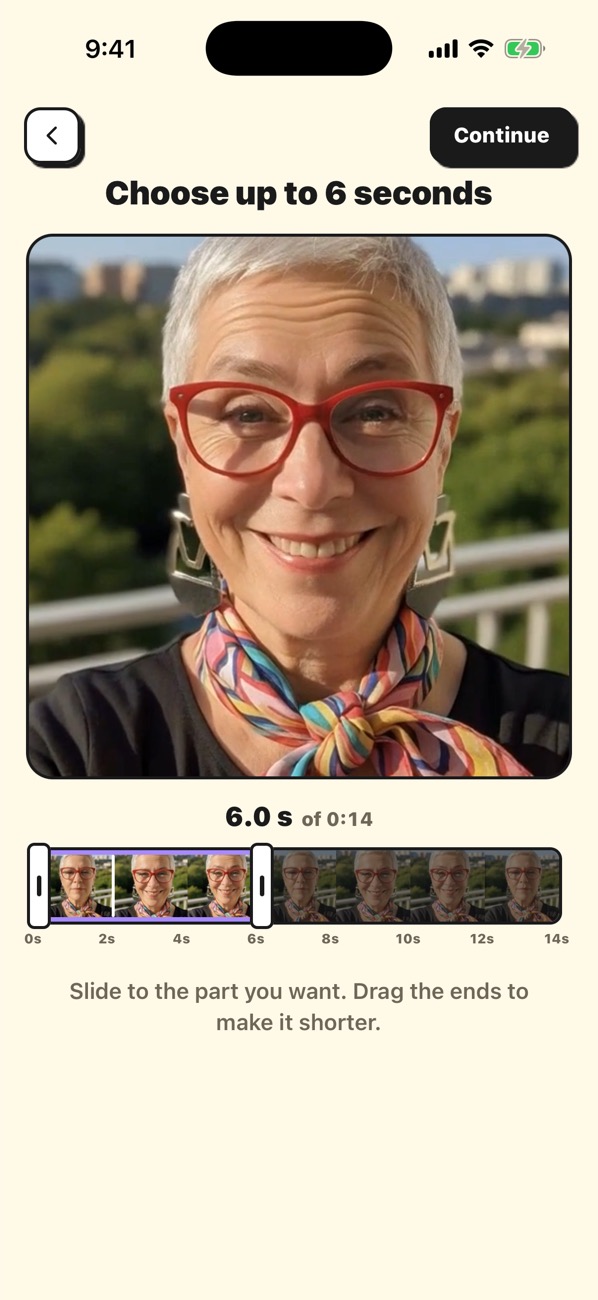
- If the video is longer than 6 seconds, the Choose up to 6 seconds screen opens. Slide the highlighted part to the moment you want, or drag its ends to make it shorter, then tap Continue.
- The editor opens. Drag the video with one finger and pinch to zoom, to frame the square.
- Tap Save.
Add your own touch in the editor
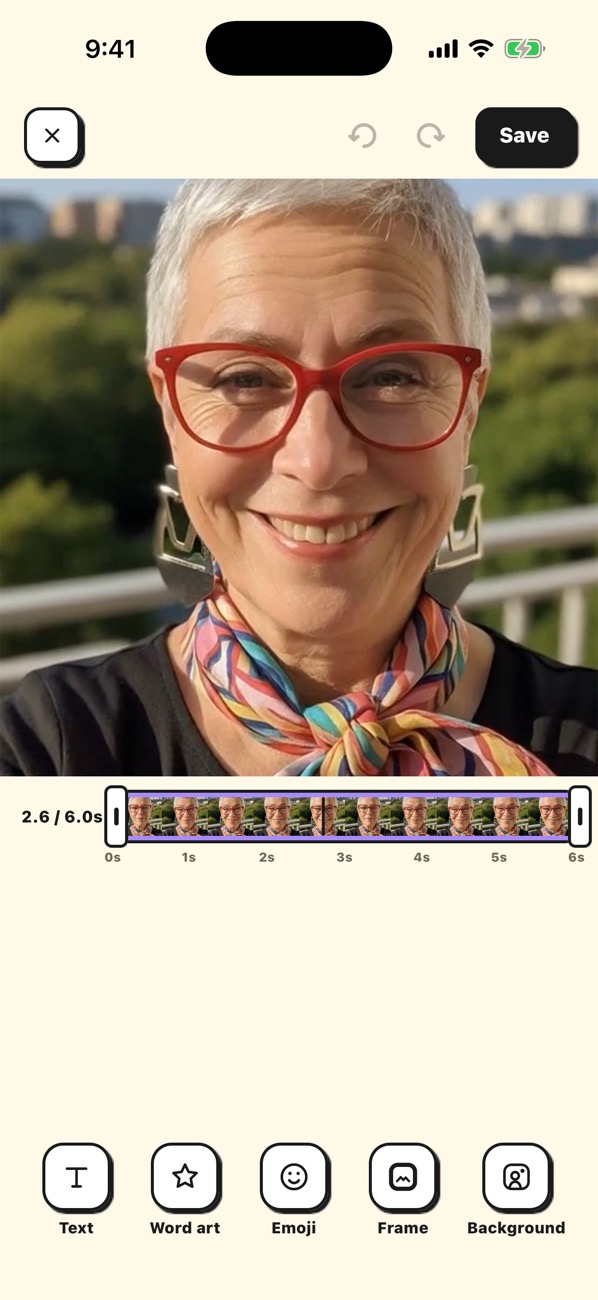
Editing is your choice, after the sticker exists. The tools sit in a row at the bottom of the editor: Text, Word art, Emoji, Frame and Background.
- Text and Emoji can enter with a motion such as Pop, Bounce, Typewriter or Shake, and the timeline sets when each one appears and leaves, so a caption can land on the exact beat of your clip.
- Frame wraps the sticker in Round, White, Black or Pop, which makes a pale clip stand out on a white chat.
- Background offers Cutout, which removes the background behind your subject. It takes a few seconds, once per video.
- The two handles on the timeline trim the clip, down to a minimum of 1 second.
Send it
After Save, you land on the sticker page, with a WhatsApp button and an iMessage button.
- For WhatsApp, tap WhatsApp. In the Copy to WhatsApp window, tap Copy sticker.
- Tap Open WhatsApp, open the chat and tap the message box.
- Tap Paste, then send. WhatsApp turns the paste into a sticker.
- For iMessage, tap iMessage (the first time, tap Continue on the short Dappi iMessage extension sheet). Dappi opens a message with the sticker attached, which arrives as an animated GIF. You can also pick the sticker from Dappi's drawer inside Messages.
No video? Make one from a photo
AI Sticker starts from a photo instead of a video. Open Create, tap AI Sticker, add your photo with Camera or Library, pick a model (Classic, Premiere Lite or Premiere), write your prompt in the Describe what happens box, then tap Generate Sticker. Premiere rewards detail, so describe the motion and the expression. The prompts guide and the AI sticker guide go deeper.
The app keeps improving, and the team is obsessed and excited about what comes next.
Download Dappi on the App Store