Point your iPhone camera at the code to get Dappi.
To turn a photo into a sticker on iPhone, open it in the Photos app, touch and hold the person or pet, and tap Add Sticker. Apple's guide lists effects such as Comic or Outline that you can add before you send it.
How to turn a photo into a sticker on iPhone without an app
You can make a sticker from a photo in the iPhone Photos app, with no extra app. You need only the Photos app. The steps from Apple's iOS 27 guide, checked on November 8, 2026:
Open the Photos app and tap a photo to see it full screen.
Touch and hold the person, pet or object, then let go.
Tap Add Sticker.
To change its look, tap Add Effect and pick one, such as Outline or Comic.
It works best on a photo where one person or pet stands out clearly from the background.
Make a Live Sticker in Messages
You can also make a sticker from a photo inside a Messages chat, and use it there right away. The steps from Apple's iOS 27 guide to sending stickers, checked on November 8, 2026:
Open a conversation in Messages, open the apps menu and tap Stickers.
Open your Live Stickers and add a new one.
Tap a photo and add it as a sticker.
To change its look, tap Add Effect and pick an option, such as Comic or Shiny.
Pick a Live Photo and the sticker animates, replaying the moment your camera caught. To send any of your stickers, open Stickers in a chat and tap the one you want.
Make a sticker from a photo in WhatsApp
WhatsApp has its own sticker maker that turns a photo into a sticker, with text, emoji or drawings on top. The steps from WhatsApp's help page, checked on November 8, 2026:
In a chat, tap the Stickers icon, then tap Create.
Tap Use a photo and pick a photo from your gallery.
On the preview screen, add text, and a sticker, emoji or drawing if you like.
Tap send.
Dappi is an independent app. It is not affiliated with, endorsed by, or sponsored by WhatsApp LLC, Meta, or Apple. WhatsApp is a trademark of WhatsApp LLC.
All three ways cut out what is already in your photo. None of them can add a new action or a new scene.
How to make an animated sticker from a photo on iPhone
Use AI Sticker in the Dappi sticker app: add your photo, say what happens in your AI video, and Dappi turns it into a short animated sticker or GIF that starts from your photo. You need the Dappi sticker app on iOS 17 or later and a Dappi account.
Tap the purple plus button in the tab bar and choose AI Sticker at the top.
Under Your photo, tap Camera or Library, then frame the square you want.
Tap the Model bar and choose one. For most photos pick Premiere, because it takes long, detailed prompts, or Premiere Lite, which is faster at a lower resolution.
Write your prompt in the Describe what happens box, or tap the mic and speak it.
Set the length with the slider and tap Generate Sticker.
For Premiere and Premiere Lite, write what happens in the order it happens and add as much detail as you can: the action, how your face reacts, where the camera is, and last, the sound. More detail gets closer to what you imagined.
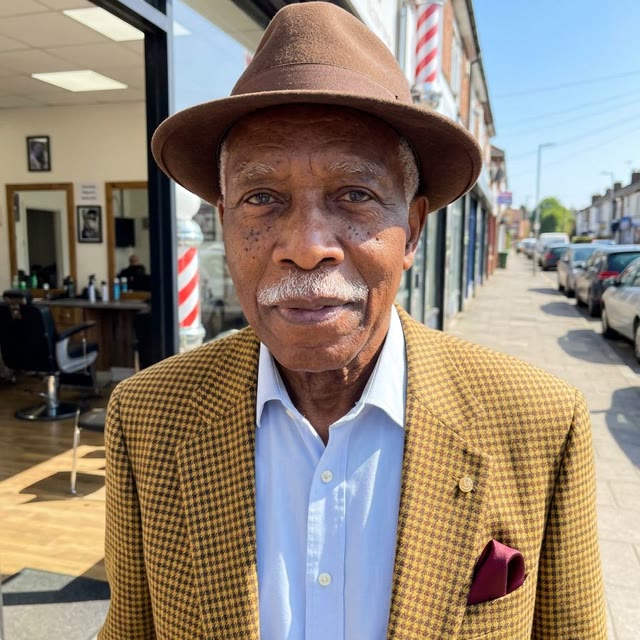
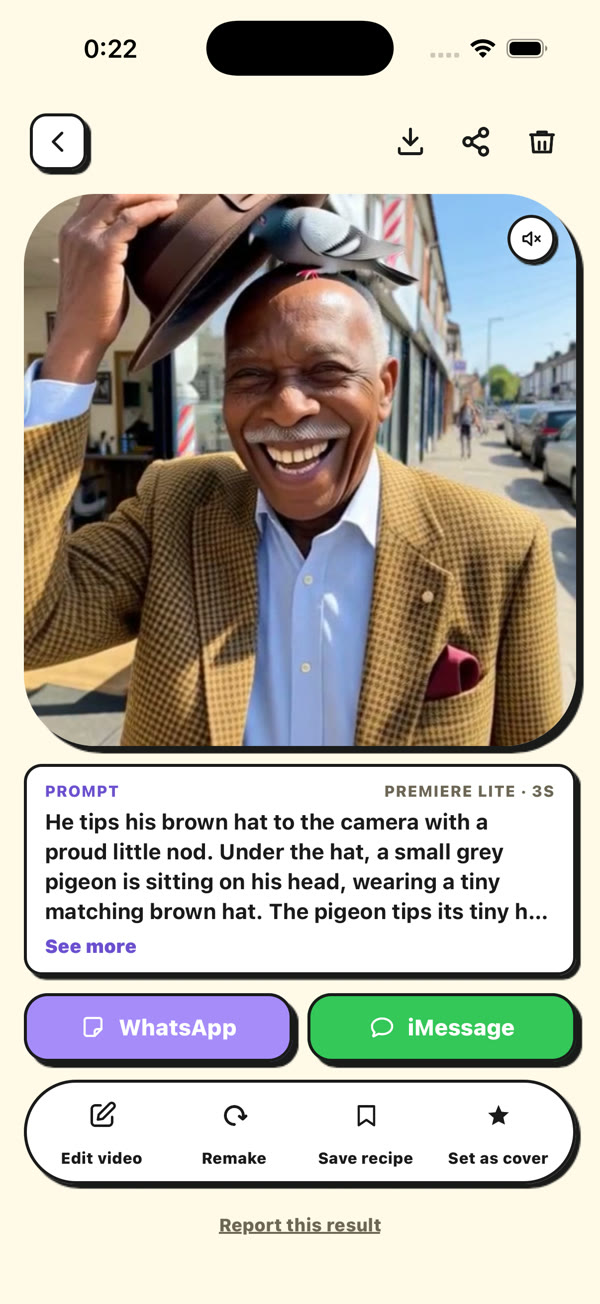
Here is one we made from a single photo with Premiere Lite:
PhotoDappi result
A pigeon under the hat
Prompt, Premiere Lite, 3 secondsHe tips his brown hat to the camera with a proud little nod. Under the hat, a small grey pigeon is sitting on his head, wearing a tiny matching brown hat. The pigeon tips its tiny hat too. He rolls his eyes up toward it, then bursts out laughing. The camera stays still at face level. Sound: street noise, a soft coo, then his deep laugh.
For more prompt ideas, styles, and AI Pro, which first puts you in a whole new scene, see the guide to the AI sticker maker from a photo. AI stickers use credits or a monthly plan.
How to make a regular sticker from a photo for free
Use the Free option in Dappi, which turns your own photo or video into a regular sticker with no AI, at no cost. You need a Dappi account.
Tap the purple plus button and choose Free at the top.
Under Choose a photo or video, tap Camera or Library. A video over 6 seconds asks which part to keep.
Your photo opens in the editor as a 3 second sticker.
Tap Save, and your sticker's page opens with the WhatsApp and iMessage buttons.
The editor's main tools:
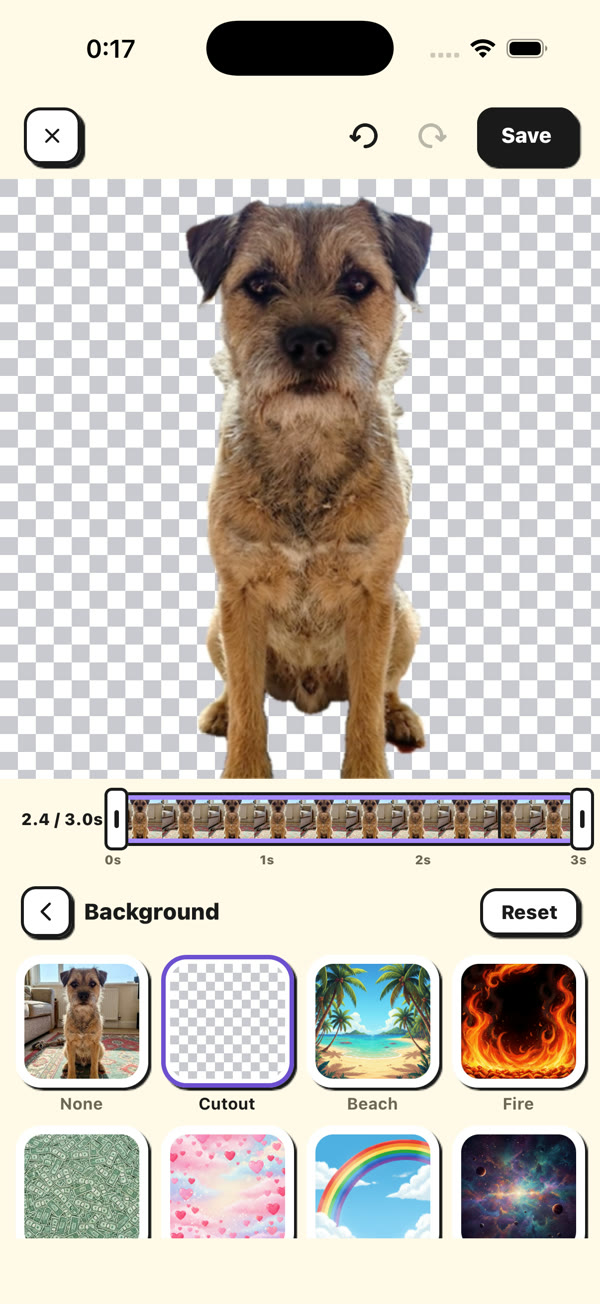
Background cuts you out. Keep just you with Cutout, or put yourself on a Dappi background or another photo of yours.
Text adds words like "omw" that can pop in, bounce or type themselves out.
Frame rounds the corners. Pick White, Black or Pop for an outline, or None for sharp corners.
Dappi has no ads, so nothing interrupts you while you make a sticker or send it.
The Background tool with Cutout selected. Dappi removes the photo's background around the subject.
How to send a photo sticker in iMessage and WhatsApp
In iMessage, tap iMessage on your Dappi sticker's page, and for WhatsApp, copy the sticker in Dappi and paste it into the chat.
iMessage
On your sticker's page, tap iMessage.
The first time, tap Continue in the window about Dappi's iMessage extension.
Choose the person or group and send. Your sticker arrives as a GIF that plays in the chat.
Dappi also has an iMessage app, so you can pick your stickers from inside a chat.
WhatsApp
On your sticker's page, tap WhatsApp.
In the Copy to WhatsApp window, tap Copy sticker. Tick "Got it, don't show this again" to skip it next time.
When Dappi says Copied!, tap Open WhatsApp.
Open the chat, tap the message box and tap Paste.
Send it, and it arrives as an animated WhatsApp sticker.
Dappi is an independent app. It is not affiliated with, endorsed by, or sponsored by WhatsApp LLC, Meta, or Apple. WhatsApp is a trademark of WhatsApp LLC.
A finished sticker's page. Tap WhatsApp or iMessage to send it.
Common problems when you turn a photo into a sticker
The usual problems are a cutout that takes too much or too little, a face too small in the square you framed, and a style that needs credits or a monthly plan.
If Photos cuts out the wrong part, try a photo where you stand out from a plainer background.
Dappi starts the sticker from the exact square you frame, so zoom in until your face fills a good part of it.
If a popup says styles aren't on the free plan, leave the style on None, or get credits or a monthly plan.
The app keeps improving, and the team is obsessed and excited about what comes next.