
What you need before you start
You need an iPhone and the thing you want to animate: a video, a Live Photo, a few photos, or a screen recording. The Shortcuts app is built into the iPhone. If you deleted it, download Shortcuts again from the App Store, because the free way to make a real GIF file runs inside it.
A GIF is a short image file that loops with no sound. It plays in Messages, in Photos and on most websites. Messages' #images search and GIF keyboards find GIFs other people made; this guide is about making your own.
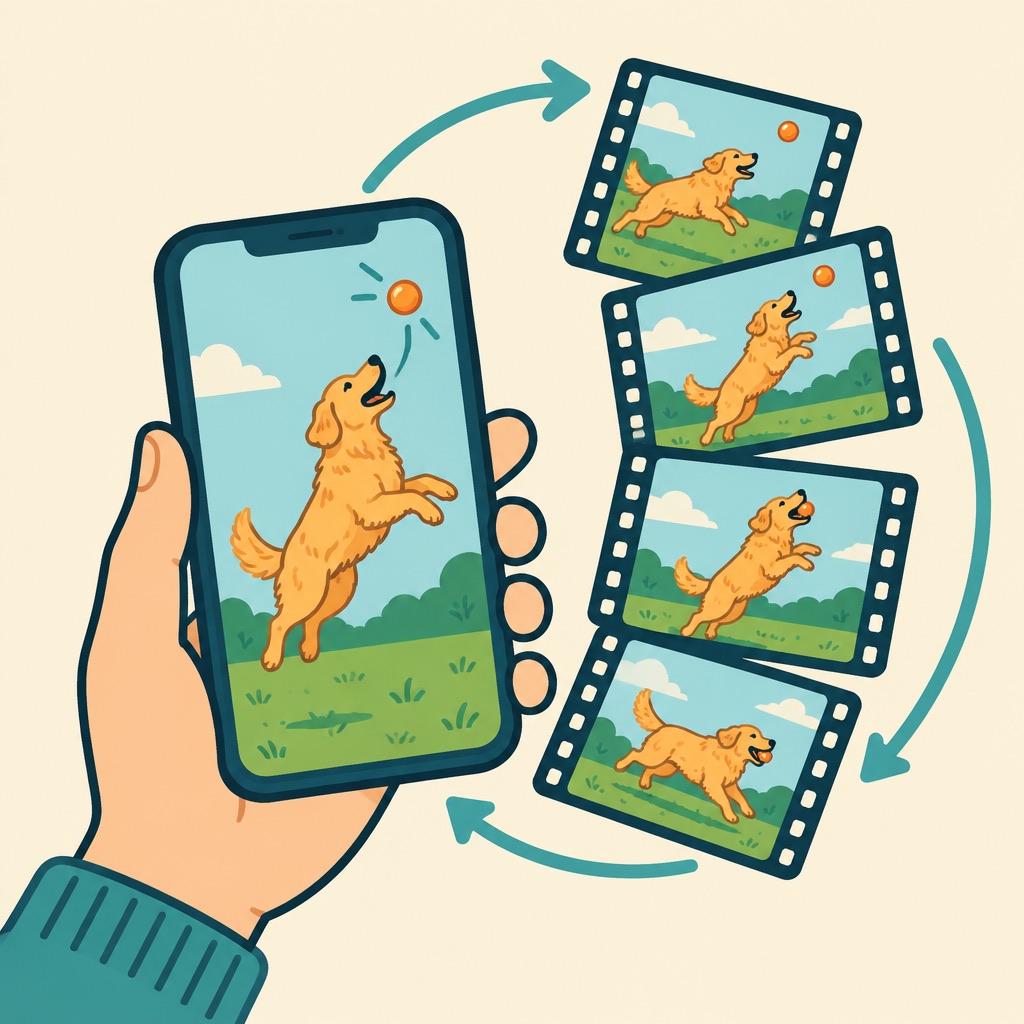
Make a GIF from a video on iPhone with Shortcuts
The Make GIF shortcut turns a video or a Live Photo into a looping GIF and saves it to Photos, with no extra app. Make GIF is an action in Apple's Shortcuts guide, and the steps below are the ones that how to guides for the Gallery shortcut agree on (checked on November 13, 2026).
- Open the Shortcuts app and tap Gallery at the bottom.
- Search for gif, tap Make GIF and tap Add Shortcut.
- Go back to the Shortcuts tab and tap Make GIF to run it.
- Pick a video or a Live Photo. The first time, Shortcuts asks for access to your photos, so allow it.
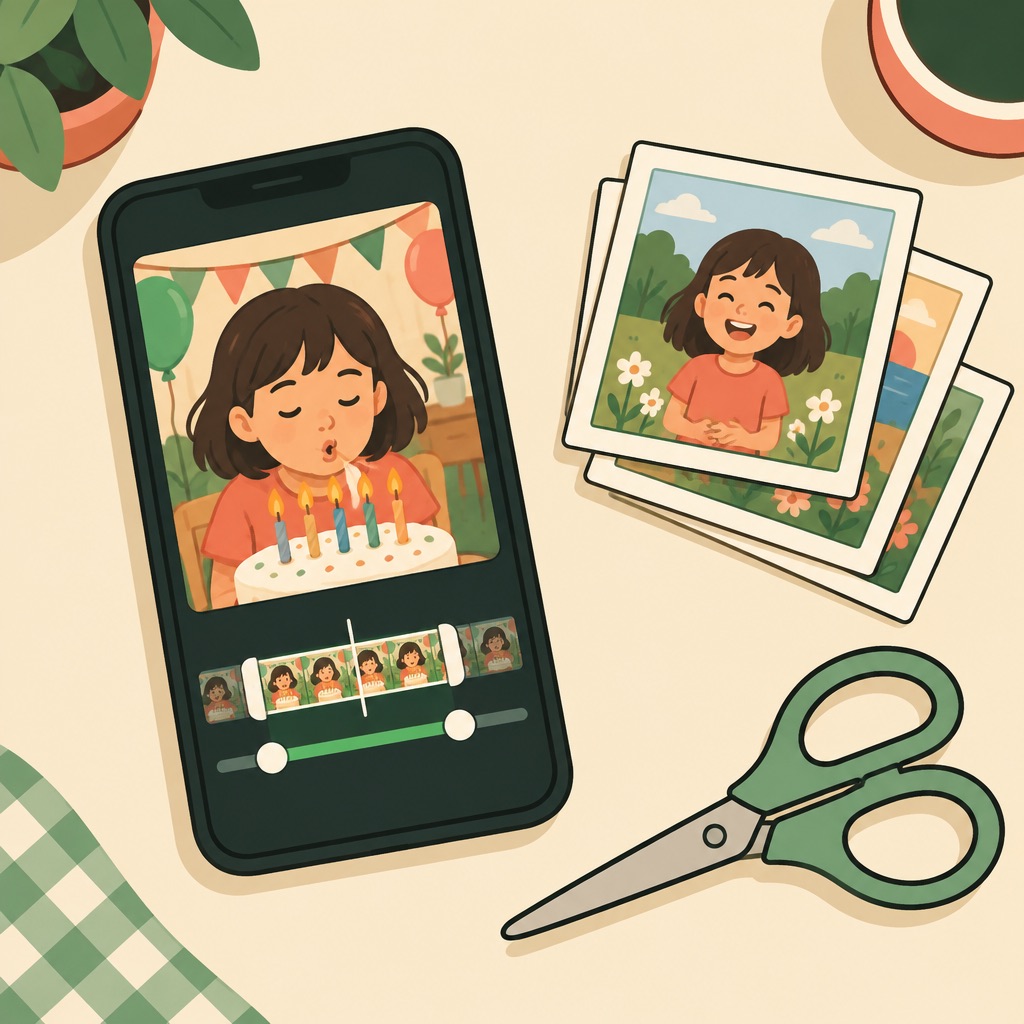
- Drag the ends of the slider to choose where the GIF starts and stops, and tap Play to preview it.
- Tap Save, then Done. The GIF goes to your Photos library.
Keep the part you choose short, two to five seconds. A long clip makes a large file that loads slowly and may be too big for some chats, and the trim slider is the only control this shortcut gives you.
Make a GIF from photos on iPhone
To make a GIF from several photos, build a small shortcut of your own that joins them in order. It takes about a minute to set up and you can run it again for any set of photos.
- Open Shortcuts and tap the plus button to start a new shortcut.
- Add the Select Photos action.
- Add the Make GIF action under it.
- Add the Save to Photo Album action, so the finished GIF lands in Photos.
- Name the shortcut, tap Done and run it, then pick your photos.
Photos taken a split second apart give smooth motion, and photos far apart in time give a GIF that jumps from frame to frame, which suits a before and after or a countdown. For smooth motion, take a burst: in the Camera app, drag the shutter button to the left and let go to stop. Apple's Camera guide then has you tap the burst thumbnail in Photos, tap Burst at the top left, tap the circle on each shot you want and tap Done, so they are kept as separate photos you can pick in the shortcut. For a GIF that puts a friend's photo and name together, see our guide to a happy birthday GIF with name and photo.
Loop a Live Photo in the Photos app
The Photos app can play a Live Photo as a loop, and Apple describes it as a Live Photo effect, not a GIF. Apple's page on Live Photos gives these steps (checked on November 13, 2026):
- Open the Live Photo in Photos.
- Tap the Live Photo button near the top of the screen.
- Choose Loop to repeat the clip, or Bounce to play it forward and back.
The loop plays inside Photos. Apple says a Live Photo shared through Mail arrives as a still picture, and editing it in another app can remove the effect. When you need a file that plays everywhere, run the Make GIF shortcut on the same Live Photo instead. Where this menu sits has changed between iOS versions, so if you do not see it, look for the Live label at the top left of the open photo. Bounce is a good choice for clips that do not loop on their own, such as someone jumping, because the motion returns to where it started.
Turn a screen recording into a GIF
A screen recording is a video, so you record first and then turn it into a GIF with the Make GIF shortcut. Apple lists these steps for recording (checked on November 13, 2026):
- Swipe down from the top right corner to open Control Center.
- Tap the Screen Recording button and wait for the three second countdown.
- Tap the red indicator at the top of the screen and tap Stop. The recording is saved to Photos.
If the button is missing, touch and hold an empty part of Control Center, tap Add a Control and choose Screen Recording. Some apps block screen recording. Trim the start and end in the shortcut, so the GIF does not open on Control Center.
GIF maker apps for iPhone
A GIF maker app adds what the shortcut cannot, such as text, stickers, speed and filters. Each app below is free to download, and the facts come from its own App Store page, checked on November 13, 2026.
- GIF Maker by ImgPlay: makes GIFs from photos, videos, Live Photos, burst photos and screen recordings, with captions, stickers, drawing and filters. It is rated 4.8 from about 46K ratings. Removing its ads needs its Pro subscription.
- GIF Maker by Float Tech: turns a video or Live Photo into a GIF, with trim, crop, speed, captions and filters, and its page says it has no ads and needs no account. It is rated 4.7 from about 3K ratings. Some features need its Premium Pass.
- GIF Maker, GIFs for Texting: makes GIFs from photos and videos with text, stickers and speed, and exports at Low, Medium or High quality. It is rated 4.8 from about 2.4K ratings. Its page says full use needs a subscription.
- GIPHY: The GIF Search Engine: mainly a GIF library, and its page says you can also create your own GIFs with its camera or by uploading your own. It is rated 4.8 from about 732K ratings and shows ads. Its page does not say whether a GIF you create stays private, so check that before you make one of your family.
The complaints people leave about GIF maker apps repeat across reviews: features that need a subscription after you start using the app. Make one test GIF and save it before you pay for anything.
Make a GIF on iPhone in Safari, with no app
A web tool makes a GIF from a video or photos in Safari, with nothing to install. You upload your files to the tool's server, so skip it for private videos.
- EZGIF: its Video to GIF page takes files up to 200MB and clips up to 60 seconds at 5 frames per second, or 30 seconds at 10 frames per second. It lets you set the frame rate, size, crop and loop count, and says uploads are deleted after one hour. Its GIF maker joins photos into a GIF.
- Adobe Express: its video to GIF page says it is free, needs no credit card and takes videos up to one minute, with large, medium and small output sizes.
Both pages were checked on November 13, 2026. In Safari, tap the download link when the GIF is ready, then open it and save it to Photos.
Tips for a GIF that looks good and stays small
- Keep it short. Two to five seconds is enough for a reaction, and WhatsApp's own GIF option takes videos under six seconds.
- End where you started. A clip where the motion returns to the start, like a wave or a nod, loops without a jump. Bounce does this for you on a Live Photo.
- Crop to the action. A GIF is small on the screen, so a face or a hand fills the frame better than a wide room.
- Pick clips with simple colours. A GIF holds at most 256 colours, so soft gradients such as a sunset sky turn blotchy.
- Lower the size when a chat refuses the file. Most GIF apps and web tools offer a smaller output size, and a shorter clip shrinks the file the most.
- Do not count on sound. A GIF never carries audio, so a clip that needs its sound works better sent as a video.
If you would rather not trade colour for size, Dappi, the sticker and GIF app in the last section, makes GIFs with smooth, rich colour that stay small enough to send quickly.
Why your GIF shows as a still picture
A GIF usually looks still because the place you are viewing it shows only its first frame, or because what you made was a Live Photo or a video and not a GIF.
- A Live Photo with Loop is not a GIF. Apple says Mail sends a Live Photo as a still. Run the Make GIF shortcut on it to get a file.
- GIFs stay still everywhere: open Settings, Accessibility, Motion and check that Auto-Play Animated Images is on.
- A pasted GIF can arrive as a still. Attach the saved GIF from Photos instead.
Our guide on how to send a GIF on WhatsApp and iMessage covers sending your new GIF and the fixes for each chat app.
The ways side by side
This table sets each way in this guide next to the others by what it starts from and what you get.
| Way | Starts from | You get |
|---|---|---|
| Make GIF shortcut | Video, Live Photo | A GIF, trim only |
| Your own shortcut | Photos, burst | A GIF in photo order |
| Loop or Bounce | Live Photo | A looping Live Photo, no GIF |
| GIF maker apps | Any of these | A GIF with text and effects |
| EZGIF, Adobe Express | Video, photos | A GIF, uploaded first |
| Dappi | One photo, or a video | A GIF with AI motion you describe |
Make a GIF from one photo with AI
Every way above needs motion that already exists, such as a video, a Live Photo or a set of photos. To make a GIF from a single still photo, an AI app has to create the motion for you.
Dappi is a sticker and GIF app for iPhone. You give it a photo and a prompt that says what should happen, and it makes a short AI video that you can send as a sticker or GIF in WhatsApp and iMessage, save as a GIF file in Photos, or save and share as a regular video. Dappi has no ads, so nothing interrupts you while you make or send one.
You need Dappi from the App Store and a photo with a clear subject, such as a face, a pet or an object.
- Open Dappi, tap the plus button in the middle of the tab bar and tap AI Sticker.
- Tap Add your photo, then Camera or Library.
- Pick a model under MODEL. Premiere, the default, handles long, detailed prompts and is the one to use for a scene with several steps. Classic suits quick, simple ideas and short prompts.
- Write what should happen in the Describe what happens box, or tap the microphone and say it.
- Set the Length from 3 to 6 seconds and tap Generate Sticker.
- On the sticker page, tap the download icon. In the Save this sticker window, choose Low, Medium or High under Quality and tap Save as GIF. Dappi tells you the GIF is in your Photos.
To send the GIF straight to another app, tap the share icon and Share as GIF instead. A Dappi GIF keeps its colours rich and smooth while the file stays small enough to send fast. High is the default, and Low makes the smallest file, which helps when a chat refuses a large GIF.
With Premiere, write the motion step by step and be specific, because each detail you add steers the result toward the picture in your head: what happens first, what happens next, the expression, and how the camera follows. Start with an everyday reaction you will send often, like your friend giving a slow thumbs up. Then go bigger, like your cat conducting an orchestra with a breadstick, or your grandmother crowd surfing at a concert.
Dappi also turns your own video into a GIF with no AI. Tap Free on the same screen, choose a video and, if it is longer than 6 seconds, slide to the part you want and tap Continue. The editor opens, where you can add Text, Word art or Emoji so the GIF carries its own caption. Tap Save, then save it as a GIF from the sticker page the same way. An AI sticker gets the same editor through Edit video on its sticker page.
Download Dappi on the App Store
Our guides to animating a photo on iPhone and adding text to a sticker go further into prompts and captions.