
How to make a picture into a comic: one picture or a strip
Making a picture into a comic is two jobs: redrawing the photo in a comic look, and, for a strip, arranging the pictures in panels with speech bubbles. Most tools are good at one of the two, so pick the tool by the result you want.
| Way | Free or paid | What you get |
|---|---|---|
| Comic effect in Photos | Free, built in | A comic sticker of one person, pet or object, with no background |
| ChatGPT or Gemini | Free to start, with limits | One comic picture, or a page of panels you describe |
| Comic filter apps | Free to try | One comic picture, with the face kept exactly by filters such as Clip2Comic |
| Comic book apps | Free to start | Many pages with a story and speech bubbles |
| Layout apps | Strip Designer and Comic Life are paid apps | Your pictures in panels, with bubbles you write |
The table was checked on November 25, 2026. For one comic picture to send or post, ChatGPT or Gemini gives you the most control of any app that draws for you, because you describe the ink, the colours and the scene in your own words. A filter app such as Clip2Comic draws over the photo instead of redrawing it, so the face stays exactly as it is. For a strip, make the picture for each panel first, then put the panels and the words together in a layout app.
Which photo makes a good comic
A sharp, close photo of a face turned toward the camera, in soft and even light, makes the best comic in every tool on this page. The tool can only keep the eyes, nose, mouth and hair that it can see clearly in the photo.
Light from a window in front of the person, or an overcast day outside, works better than a flash or hard sunlight from above or the side, which leave hard shadows across the face. A plain background keeps the tool's attention on the person. Use the original photo from your Photos library, not a copy saved from a social app, which is smaller and blurrier. Take off sunglasses and keep hands, hats and masks away from the face.
For a strip, pick one photo for each panel, and let each photo show one clear moment, such as a jump, a shocked face or a hand pointing at something. A comic tells its story through big, readable poses, and a photo of someone standing still gives the panel nothing to say.
Comic filter on iPhone: the free Comic sticker effect
The Photos app on iPhone has a free Comic effect for stickers that redraws the subject of a photo, such as a person, a pet or an object, in a comic drawing look. It needs iOS 17 or later, and it works on the subject only: the iPhone lifts the subject out of the photo as a sticker, so there is no background, panel or bubble. These steps follow Apple's iPhone User Guide, checked on November 25, 2026:
- Open the photo in the Photos app.
- Touch and hold the subject, then let go.
- Tap Add Sticker.
- Tap Add Effect and choose Comic.
Apple lists other effects in the same place, such as Outline and Puffy, so you can compare the comic version with a plain outline. The sticker appears in your stickers menu, which you open from the onscreen keyboard or the Markup tools, ready to drop into a message or onto a photo. Apple's guide to making stickers from your photos has the details. If nothing lifts out when you touch and hold, pick a photo where the person or pet stands out clearly from the background.
Photo to comic with ChatGPT or Gemini
ChatGPT and Gemini redraw a photo you add to the chat as a comic book picture in whatever comic style you describe, and both apps are free to download on iPhone. They give you the most control of any app that draws for you, because every part of the look, the scene and the framing comes from your words. Gemini's image model is called Nano Banana.
- Open ChatGPT or Gemini, start a new chat and add your photo.
- Write a prompt that names the comic look, what has to stay the same, and the scene.
- Send it, then compare the face, hair and glasses in the comic with your photo.
- Fix what is off with one short message at a time, in the same chat.
This prompt follows those parts. Copy it and change the details to fit your photo:
Prompt for ChatGPT or GeminiRedraw this photo as a comic book panel: bold black ink outlines, flat bright colours, halftone dots in the shadows and a dramatic low camera angle. Keep the same person: the same face shape, skin tone, hairstyle, beard and glasses. Put speed lines behind them, as if they just burst into the scene. No text and no speech bubbles.
The first sentence sets the comic look, so swap it for the style you want. For an old newspaper strip, ask for flat colours on off white paper with halftone dots and thin, even ink lines. For a noir comic, ask for black and white with heavy shadows, rain and a single light source. For pop art, ask for big halftone dots, thick outlines and bold primary colours. For a manga page, ask for black and white with fine lines, screentone shading and large expressive eyes. For a webtoon, ask for clean thin lines and soft colours in a tall panel you scroll through. Describe the look in plain words instead of naming a famous artist or a comic publisher, because prompt guides agree that the apps may refuse those names. For other drawn looks, such as a 3D film character or a storybook, our guide to turning a photo into a cartoon on iPhone has the words for each one.
Name what makes the person recognisable, such as curly red hair, round glasses or a gap between the front teeth, because the features you name are the ones the app works hardest to keep. If the comic version still drifts, a style with realistic proportions keeps more of the face than a cute style with huge eyes, and our guide to making a chibi of yourself shows how far a cute style can go.
Fix a comic picture one change at a time
OpenAI's image guide, checked on November 25, 2026, advises changing one thing per message and saying clearly what changes and what stays the same. If the face drifted, write "Make the face match the original photo more closely and change nothing else." If it still looks like a photo, write "Push the comic style further: thicker ink lines, flatter colours and no photo texture. Keep the same face and pose." In ChatGPT you can also select one area of the picture, such as a hand or the background, and describe the change for that area only.
Free use of both apps has limits that can change, and Gemini's help page, checked on November 25, 2026, names a daily quota on images. Google's image generation notes say Gemini may refuse a prompt it judges unsafe and may return a different number of images than you asked for. When a person other than you is in the photo, OpenAI's guide asks you to confirm you have permission to use their likeness, so ask your friends before you put them in a comic.
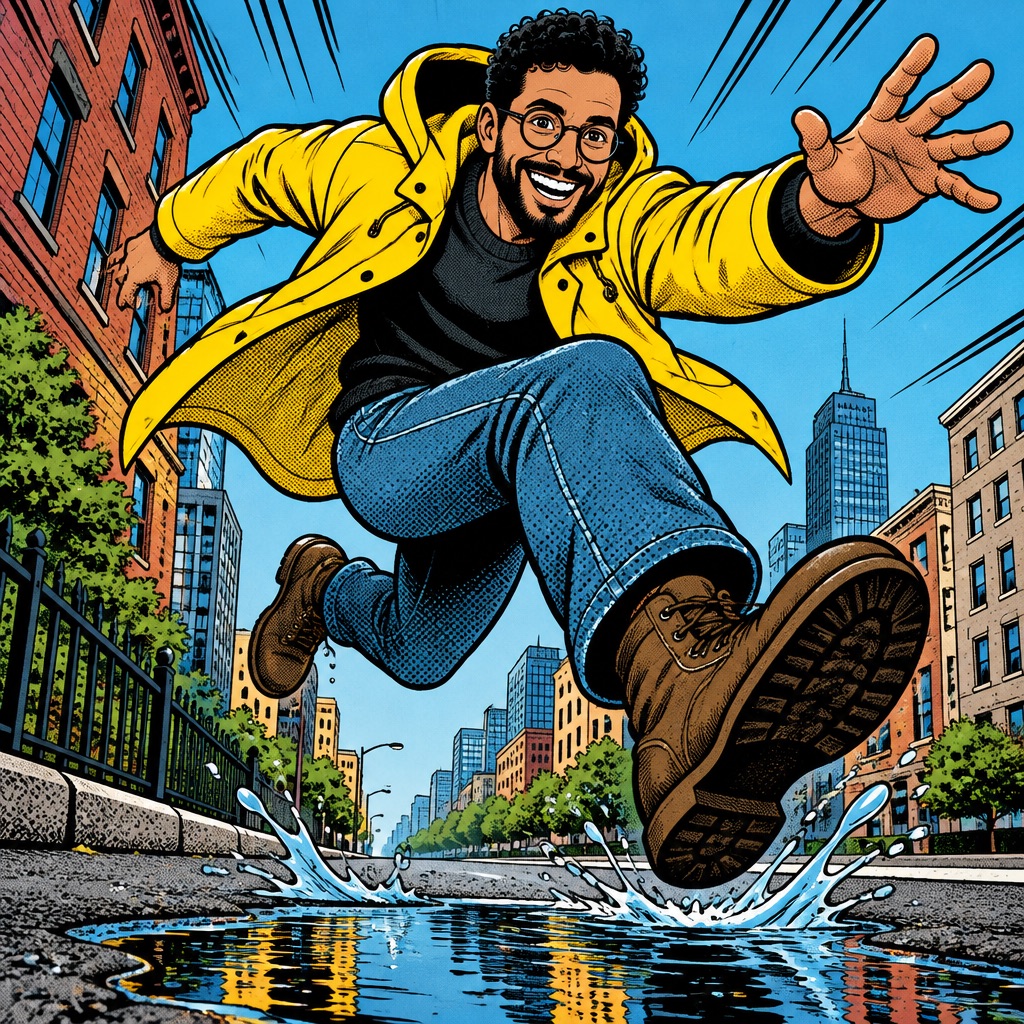
How to make a comic strip from your photos with AI
To make a comic strip with ChatGPT or Gemini, make the character first and build every panel from it, because AI chat apps tend to change the face, hair and clothes from one panel to the next. That drift is a common problem, and the steps below keep it small. Before you open the app, write a short script: four panels, one action in each, and the words each character says.
- Add your photo and ask for one comic portrait of the person, full body, on a plain background. Keep this picture as your reference.
- Write a description of the character once, with the face, hair, clothes and colours, and paste it word for word into every panel's prompt.
- Ask for the whole page in one request, or make one panel at a time with the reference picture added each time.
- Ask for empty speech bubbles, or none at all, and add the words yourself at the end.
This prompt makes a four panel page from the reference picture. Change the scenes to your own story:
Prompt for ChatGPT or GeminiUsing the comic character in the attached picture, draw a four panel comic page in a 2 by 2 grid. Show the same character in all four panels, with the same face, hair and outfit. Bold ink outlines, flat colours, halftone shading. Panel 1: wide shot, she spots the last slice of pizza across a crowded kitchen. Panel 2: close up of her eyes narrowing. Panel 3: she dives over the kitchen table in slow motion, plates flying. Panel 4: she lands holding the slice up like a trophy. Leave one empty speech bubble in panel 1 and one in panel 4. No words anywhere.
Give every panel its own camera, such as a wide shot, a close up or a view from below, because a strip where every panel is framed the same way reads flat. Expect some drift even with a reference picture. Fix one panel at a time, and if a chat keeps drifting after a few fixes, start a new chat with the reference picture and your best prompt so far.
How to add speech bubbles to a comic
Add the words to your comic yourself, in a layout or photo app, because words drawn by an AI app can come out misspelled and are hard to change afterwards. OpenAI's own guide, checked on November 25, 2026, says to check text in a picture word by word and to finish longer text in a design tool.
When you do want the AI app to draw a word, such as a sound effect, keep it to one or two words, put the exact words in quotes and say where they go and in what kind of lettering, as OpenAI advises. Google's notes for Gemini suggest writing out the text first in the chat, then asking for the picture that carries it. In your prompt, ask for empty space at the top of each panel so the bubbles do not cover faces.
Comic letterers write the words first and then draw the bubble around them, with space between the words and the edge of the bubble. Point the tail of a speech bubble at the speaker's mouth. A thought bubble uses a trail of small circles instead of a tail. Use one bubble shape and one lettering style through the whole strip, so the comic reads as one piece.
Canva has comic strip layouts and speech bubbles, checked on November 25, 2026. Strip Designer is an iPhone app with comic page layouts that places your photos in panels and adds balloons. Comic Life 3 has balloons, lettering and page layouts, with no AI, and its last update was in 2024, checked on November 25, 2026.
Comic filter apps for iPhone
Comic filter apps turn a photo into one comic picture with a tap, with no prompt to write. Two kinds exist: filters that draw over your photo, which keep the face exactly, and AI apps that redraw your face as a new character. The details below come from each app's App Store page, checked on November 25, 2026.
Clip2Comic, also listed as Toon Photo Editor, is a filter app that draws comic ink and colour over your photo on the phone itself, with no internet connection and no ads. It also turns videos into comics, adds comic panel frames and more than 30 decorations such as speed lines and comic dots, and exports pictures up to 64 megapixels. It makes one picture at a time and has no tool for building a story. It is a good pick when the face has to stay exact, or for a photo you would rather not upload.
ToonMe redraws your face with AI in cartoon styles, comic among them, and Toonapp makes AI toon photos. App Store reviews of both apps say the result often does not look like the person, so test the app on your best close photo first.
Picsart, a general photo editor, has a cartoon effect alongside its ComicMe story tool, so the comic look is one feature among many.
Photo to comic book apps with panels and speech bubbles
Comic book apps take your photos and give you whole pages, with panels, a story and speech bubbles, which saves you the layout work. They make the most pages in the least time, and you trade away control over each panel. The details below come from each app's own website or App Store page, checked on November 25, 2026.
myComics.ai builds a character from each face in your photos, then writes and draws a comic of 20 or more pages in a choice of more than 20 styles. It says the same face appears in every panel, and every bubble and caption can be edited. It also sells printed copies of a finished comic.
Picsart's ComicMe takes a photo of your hero and, if you like, a photo of a villain, then writes a story of several pages with panels and speech bubbles, using your photos as the characters.
To keep full control, make each panel's picture yourself with ChatGPT, Gemini or Clip2Comic, then put them together in Canva, Strip Designer or Comic Life. Strip Designer can also place your photos as they are in comic panels, with balloons, which suits a family trip or a party told as a comic without any AI.
Photo to comic websites
Photo to comic websites work in Safari with nothing to install: you upload the photo, pick a style and download the result. imagetocartoon.com says it takes JPG, PNG and WebP files up to 10 MB and has more than 80 styles, comic among them, and Fotor has an AI comic generator on its website, checked on November 25, 2026.
These sites give you fewer choices than a chat app, and how much of the face they keep varies from site to site. Your photo goes to the company that runs the site, so pick a photo you are happy to share.
Make a comic from a photo by hand in Photoshop or Procreate
Making a comic from a photo by hand gives you control over every line and keeps the face exactly, and it takes the most time and skill. In Photoshop on a computer, the usual comic recipe from video tutorials is Posterize at about 2 levels or the Poster Edges filter for flat colour, the Color Halftone filter for dots, and Threshold or an edge filter for the black ink lines.
Photoshop's Sketch filters, under Filter > Filter Gallery > Sketch, add two more ink looks. Adobe's help for its Sketch filters describes Graphic Pen as fine, linear ink strokes that capture the details of the photo, which suits comic ink lines, and Stamp as a simplified picture that looks made with a rubber or wood stamp.
On iPhone, Procreate Pocket is a paid drawing app, and its App Store page mentions Page Assist for starting a comic. Drawing by hand suits a comic you plan to print or frame, where every line matters.
Comic ideas from your photos
The best comic ideas take an ordinary photo and give it a story far bigger than the moment it shows. Comics love exaggeration, so push each idea further than feels sensible.
A photo of your dog makes an obvious superhero in a cape. Go bolder with a four panel origin story: the dog eats a dropped slice of cheese, glows, gains super speed, and saves the sofa from the vacuum cleaner in the last panel.
A birthday photo of a friend works as a comic book cover with them as the hero. Bolder still, they ride a rocket powered birthday cake over the city with the candles as boosters, and an empty bubble waits for your message.
A beach day becomes a science fiction saga, with the sandcastle as an alien fortress, your little brother as the starship captain and a seagull as the final boss. A photo of the office coffee machine turns into a giant monster stomping across the desks, while a colleague holds it back with a stapler. An old photo of your grandparents, with their OK, makes a lovely cover for a 1950s romance comic, with flat colours, a dreamy look and a big empty title space.
A comic of yourself saying the things you say every day, such as on my way, yes and no way, gets used again and again, in chats and on cards.
How to print your comic
To print a comic sharply, the picture needs about 300 dpi at its final size, and dpi means dots per inch, the number of pixels that fill each inch of paper. A page 6 inches wide and 9 inches tall at 300 dpi needs about 1800 by 2700 pixels, so check the pixel size of your picture before you send it to print.
A standard US comic book page is 6.625 by 10.25 inches, according to comic printers' guides. Printers ask for bleed, extra picture beyond the edge that gets trimmed off, most often 0.125 inch on each side and at some printers 0.25 inch, so read your printer's own guide. Keep faces and words at least 0.125 inch inside the trim line, so the cut does not touch them. Black ink line art prints cleanest at 400 to 600 dpi.
For one picture on photo paper or a card, check the pixel size first. Clip2Comic can export a photo at up to 64 megapixels, and a picture saved from a chat may be too small for a big print. myComics.ai sells printed copies of comics made in the app, for a whole comic book with no printer to deal with.
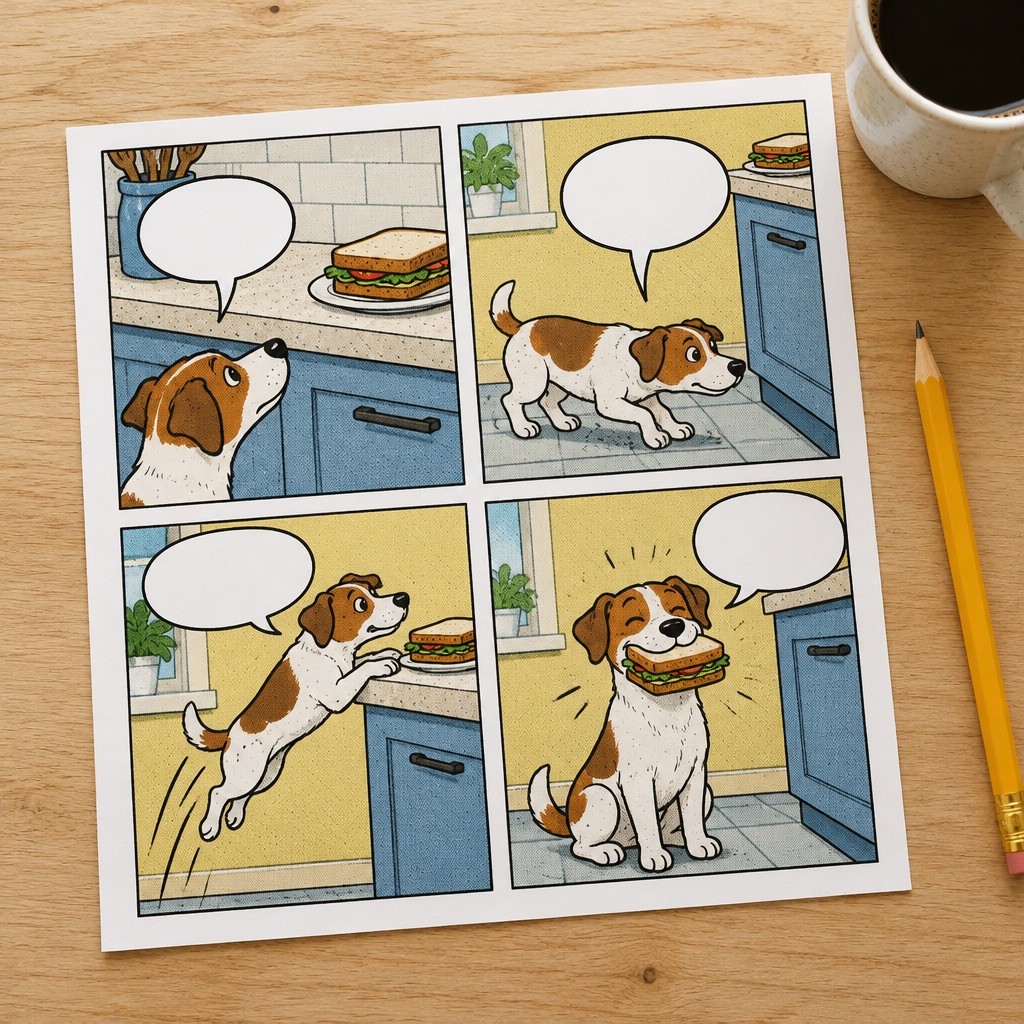
Mistakes to avoid when you turn a photo into a comic
The most common mistake is letting the AI app write the dialogue inside the picture. The words can come out misspelled, and fixing them means making the picture again, so ask for empty bubbles and type the words yourself.
Asking for a long story in one go makes the face drift and the panels pile up. Start with four panels, check them, then add the next four from the same reference picture.
A face that fills only a small part of the photo, such as one person in a group shot, loses its likeness in the comic. Crop the photo to the person first, or pick a closer one.
Printing a small picture saved from a chat or a social app gives soft, blurry lines on paper. Check the pixel size against the size you want to print.
Turn your comic into a sticker or GIF
A comic picture becomes a sticker in the Photos app in a few seconds, so the hero of your comic can join your chats. Save the comic to Photos, open it, touch and hold the character, let go and tap Add Sticker, and you can add the Comic effect on top. Our guide to making a photo sticker on iPhone covers every step and how to send it.
Every way above ends with a still picture. To see your comic self act something out, Dappi, a sticker and GIF app for iPhone, turns a photo into a comic look and then into an animated sticker or GIF. In its Style row, Comic draws the photo in black ink with halftone dots and flat, strong colours, and Pop pastel uses thick dark comic lines with soft pastel colours. Dappi redraws your photo in the comic look you pick, then makes an AI video from that drawing and what you write in the Describe what happens box. After the sticker is made, you can swipe on its page to see the comic drawing it started from. The Comic tile's own example picture below shows the look.
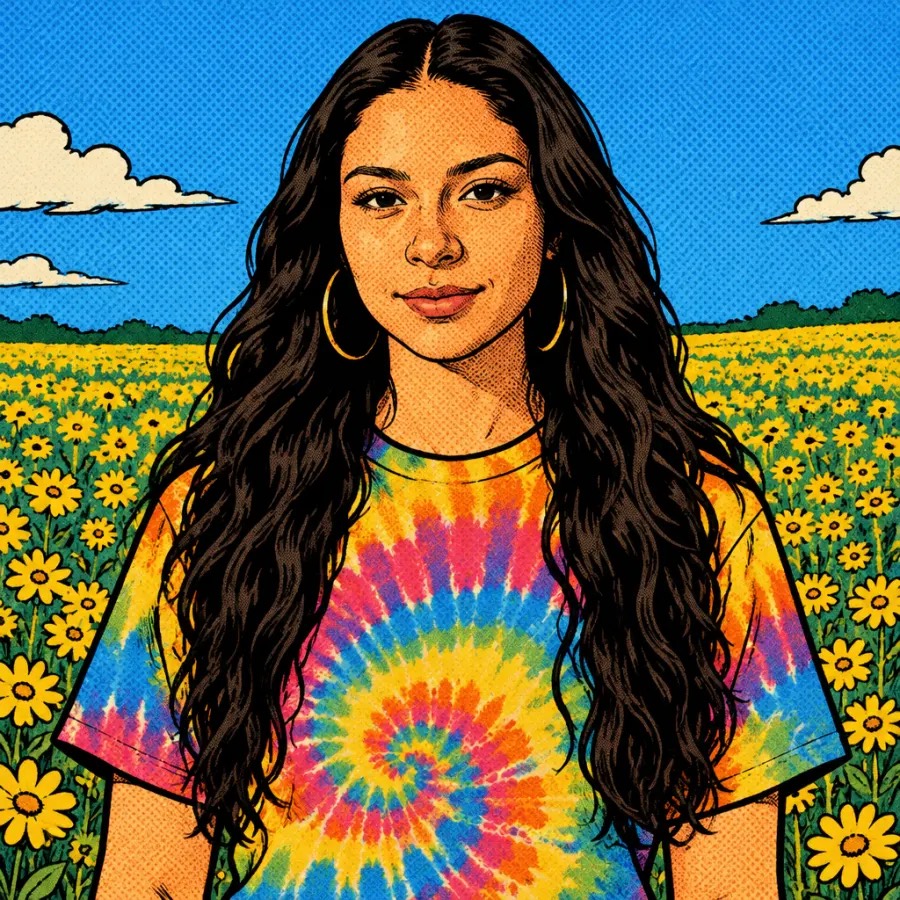
A comic sticker suits a big, silly action. Your comic self could slide down a rainbow into a pile of pancakes, or your cat could leap off the sofa in a cape while the cushions fly. For a whole new comic scene, such as a comic book hero landing on a city rooftop at night, AI Pro makes a new picture of the person in your photo in the Comic style from your photo and your words first, and then turns that picture into the sticker.
Dappi makes one sticker at a time, not panels or pages, so it suits the comic hero of your chats more than the strip itself. To give the sticker its own caption, the editor's Text tool takes any words, in fonts such as Bangers, a comic lettering font, and Word art adds ready animated phrases such as LOL and NOPE. The timeline sets when each line appears and leaves, so the words can land right on the punchline, and our guide to adding text to a sticker on iPhone shows more. When it is ready, tap iMessage on the sticker page to send it as a GIF, or tap WhatsApp to copy it and paste it into a chat as a sticker.
Dappi is an independent app. It is not affiliated with, endorsed by, or sponsored by WhatsApp LLC, Meta, or Apple. WhatsApp is a trademark of WhatsApp LLC.