
Ways to turn a photo into a cartoon on iPhone
An AI chat app gives you the most control over the cartoon look, and the other ways trade some of that control for speed or simplicity.
| Way | Works on | What you get |
|---|---|---|
| ChatGPT or Gemini | Any iPhone with the app | Any cartoon look you can describe |
| Image Playground | iPhone 15 Pro or newer | A few set styles, free, with daily limits |
| AI cartoon apps | Most iPhones | One tap looks, most behind a subscription |
| Filter apps | Most iPhones | Your exact photo with comic ink and colour |
The AI tools draw a new character from your photo, so the result looks like a real cartoon, but the face can change. A filter draws over the photo itself, so the face stays exactly the same, but the result still looks like a photo underneath.
How to turn a photo into a cartoon with ChatGPT or Gemini
ChatGPT and Gemini can redraw a photo you add to the chat in any cartoon style you describe, and both apps are free to download on iPhone. Their App Store pages, checked on November 15, 2026, say ChatGPT can transform an existing image and Gemini can edit photos with its Nano Banana image model.
- Pick a sharp photo of one person facing the camera, in soft, even light. The section on likeness below explains why.
- Open the app, start a new chat and add the photo from your library.
- Write a prompt with three parts: the cartoon look in detail, what has to stay the same, and the framing and background.
- Send it, then compare the face, hair and glasses with your photo.
- Fix what is off with one short follow up message at a time, in the same chat.
Here is a prompt that follows those three parts, ready to copy and change:
Prompt for ChatGPT or GeminiRedraw this photo as a flat 2D cartoon with thick black outlines, bright flat colours, simple cel shading and big expressive eyes. Keep the same person: the same face shape, skin tone, hairstyle, glasses and smile, in the same pose. Head and shoulders, on a plain pale blue background. No text.
Words for each cartoon look
Each of these swaps into the first sentence of the prompt and names what makes the look, so the app has less to guess:
- For a 3D animated film look, ask for a 3D animated movie character with rounded, simplified features, big glossy eyes, smooth matte skin and soft studio lighting.
- For a newspaper comic, ask for a Sunday comic strip drawing with bold ink lines, flat colours and halftone dots. Our guide to making a picture into a comic covers comic panels, speech bubbles and printing.
- For an old cartoon, ask for a 1930s black and white cartoon with rubber hose arms, round pie cut eyes, white gloves and film grain.
- For a sticker look, ask for a cute flat vector sticker with a thick white border, simple shapes and no shading.
- For a storybook look, ask for a children's book illustration with a hand painted watercolour look, soft outlines and warm colours.
- For anime, ask for a clean 2D anime drawing with thin outlines, large bright eyes and soft cel shading.
Name what makes the person recognisable, such as curly red hair, round glasses or a gap in the teeth, so the app keeps it. To copy the look of a cartoon picture you have, add it as a second image and say which image does what, such as "use the first image for the person and the second image only for the art style".
How to fix a cartoon that came out wrong
The fastest fix is one change per message, with the things to keep said again each time. OpenAI's guide gives this advice, because each new edit can change details you meant to keep.
- If the face drifted, write "Make the face match the original photo more closely. Keep the same eyes, nose, smile and hairstyle, and change nothing else."
- If it still looks like a photo, write "Push the cartoon style further: thicker outlines, flatter colours and no photo texture. Keep the same face and pose."
- If the app added things you did not ask for, such as text, extra people or a busy background, ask it to remove them by name and keep everything else the same.
- If the hands or small details look odd, ask for that one part to be redrawn, such as "Redraw the left hand with five fingers, resting on the table."
- If a chat keeps drifting after several fixes, start a new chat with the original photo and your best prompt so far, with the fixes written into it.
Your photo goes to the company that runs the app, so pick a photo you are happy to share with it. Gemini's help page says image editing is not available to users under 18. Meta AI also edits photos you give it.
Prompt guides from OpenAI and Google
Both companies publish their own guides to prompting their image models, checked on November 15, 2026. They are written for developers, but the prompts in them are plain sentences you can type into the app:
- OpenAI's image prompting guide explains how to name the visual medium, how to say "change only" one thing and list what to keep, and how to give each image you add its own job, with full example prompts for keeping a person's likeness.
- Google's Nano Banana prompting guide explains how to ask for the same photo in a different art style and how to edit by saying what changes and what stays the same.
- Google's 7 tips for Nano Banana Pro is shorter, and shows how to use one image for the person and another for the art style.
Make a cartoon with Image Playground
Image Playground is Apple's free app for iPhone 15 Pro, iPhone 15 Pro Max and any iPhone 16 model or later, with Apple Intelligence turned on in a supported language and region. It gives you a few set styles and less control over the look than a chat app, but it is quick and already on your phone. The steps from Apple's iOS 27 guide, checked on November 15, 2026:
- Open Image Playground, start a new image and tap the add person button to choose the person, or choose a photo of your pet.
- Tap the Style button and choose Illustration, or choose Any Style and describe the cartoon look.
- Tap the create button, then open the image and tap the share button to save it to Photos.
The person has to be named in the Photos app first, or Image Playground cannot find them. When your words and the photo disagree, Apple says the image follows the photo, so describe the look and the outfit, not the face. Apple sets daily limits on Image Playground, and choosing Genmoji in Style makes a small emoji sized cartoon that it saves with your stickers.
Cartoon apps for iPhone
Cartoon apps give you ready looks, so you tap a style instead of writing a prompt. Each of these is free to download and sells a subscription for the full set, according to its own App Store page, checked on November 15, 2026.
| App | Good at | Gives you |
|---|---|---|
| ToonMe | Cartoon portraits from a selfie | Pictures |
| Toonapp | Cartoon selfies and trend looks | Pictures and video |
| Voilà AI Artist | 3D cartoon and caricature | Pictures |
| Instant Toon | Cartoon and comic looks on the live camera | Pictures, video and GIFs |
| Clip2Comic | Comic and sketch filters made on your phone | Pictures and video |
ToonMe, Toonapp and Voilà redraw your face with AI, so you get a drawn character. Clip2Comic says it does everything on your phone with no internet connection, which suits a photo you would rather not upload, and it also turns videos into cartoons. Instant Toon shows the cartoon look on the live camera before you take the photo.
Many low star App Store reviews of ToonMe, Toonapp and Voilà complain about the same two things: a free trial that turns into a paid subscription, and a cartoon that does not look like the person. Read what the trial turns into before you start it, and test the app on your best photo first. To cancel, Apple's guide says to open Settings, tap your name, tap Subscriptions, tap the app and tap Cancel Subscription.
Why doesn't my cartoon look like me?
A cartoon loses the likeness when the photo shows the face poorly, or when the style changes the face too much. A better photo fixes the first problem in every tool on this page:
- Use soft, even light on the face, such as a window in front of the person or an overcast day. Strong backlight and hard shadows hide the features the tool needs.
- Use a sharp photo of one person, facing the camera, from the head to the shoulders. Crop a group photo down to one face first.
- Keep sunglasses, hats and hands away from the eyes, because the eyes carry most of the likeness in a cartoon.
- Pick a plain background, so the tool spends its detail on the person.
- Make three or four versions and keep the best one, because each try comes out a little different.
Some styles leave more of a real face than others. A 3D film look or a comic look keeps the shape of the face, while a tiny chibi character with dot eyes and no nose keeps very little of it. Our guide to making a chibi of yourself shows which details to name so a chibi still looks like you. If the cartoon keeps drifting, choose a style closer to a real face.
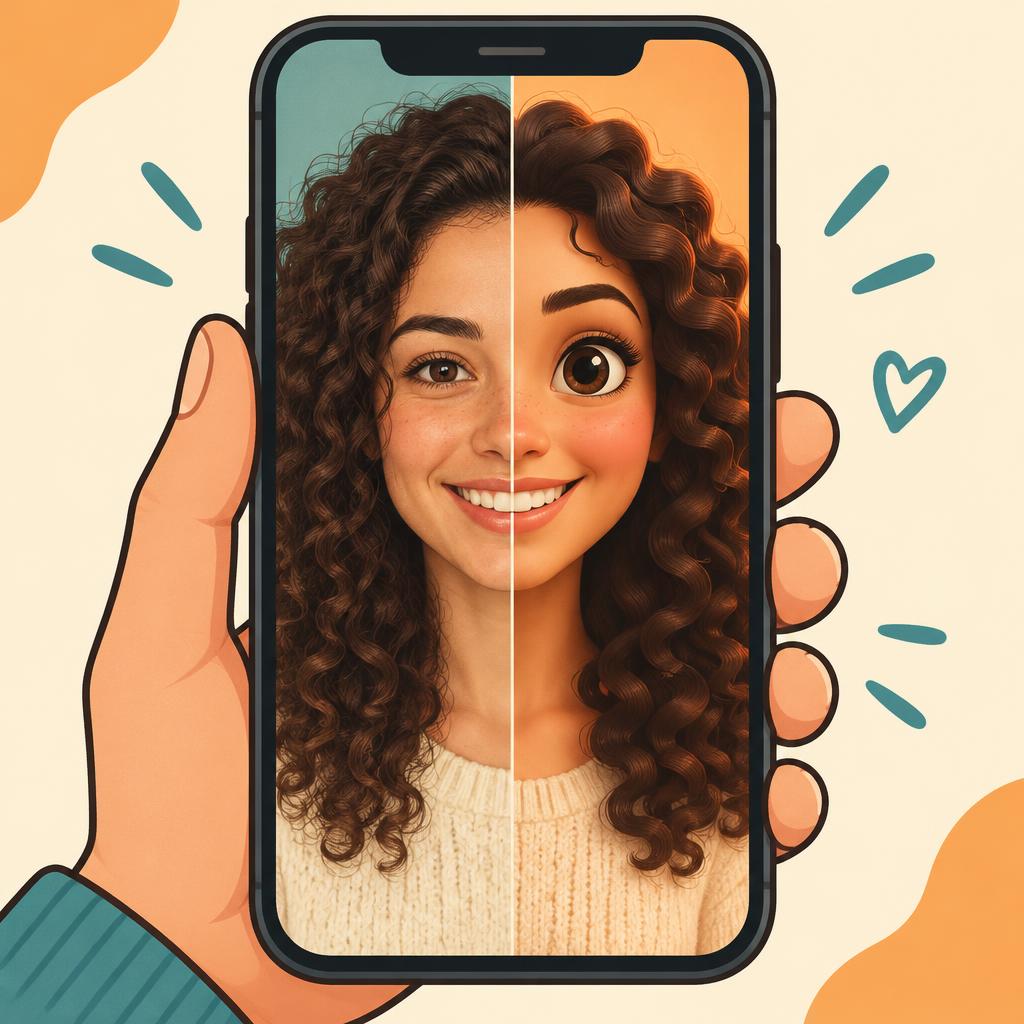
Turn your cartoon into a sticker
A cartoon picture becomes a sticker in the Photos app on any recent iPhone. Save the cartoon to Photos, open it, touch and hold the character, let go and tap Add Sticker, as Apple's guide to stickers from photos explains, checked on November 15, 2026. You can then tap Add Effect and choose Comic, which gives even an ordinary photo a comic look. The sticker sits in your stickers menu on the keyboard, and photo to sticker on iPhone covers every step and how to send it.
Make an animated cartoon sticker from a photo
Most of the ways above end with a still picture. When you want your cartoon to act out an idea you describe, and to send it in a chat as an animated sticker or GIF, use Dappi.
Dappi is a sticker and GIF app for iPhone. You give it a photo and a prompt that describes what you want to happen in the video, and it makes an AI video that you can send as a sticker or GIF in WhatsApp and iMessage, or save and share as a regular video. When you choose a style, Dappi first redraws your photo in that look, keeping the same person, pose and place, and then animates the drawing, so the whole sticker plays as a cartoon. The style takes care of the look, and your prompt only needs to say what happens.
You need the Dappi sticker app on iOS 17 or later, a Dappi account, and credits or a monthly plan, because styles are not on the free plan.
- Tap the purple plus button in the tab bar, then tap AI Sticker at the top of Create.
- Under Your photo, tap Camera or Library, frame the photo on the Frame your photo screen and tap Use photo.
- In the Style row, tap a cartoon style. To see an example of a style first, touch and hold it, then tap Use this style.
- Pick a model, Classic, Premiere Lite or Premiere, and set the length.
- Write what happens in the Describe what happens box, or tap the mic and say it.
- Tap Generate Sticker, and Dappi makes the drawing and then the video.
When the sticker is ready, swipe on its page to see the cartoon drawing it started from.
Cartoon styles and ideas to try
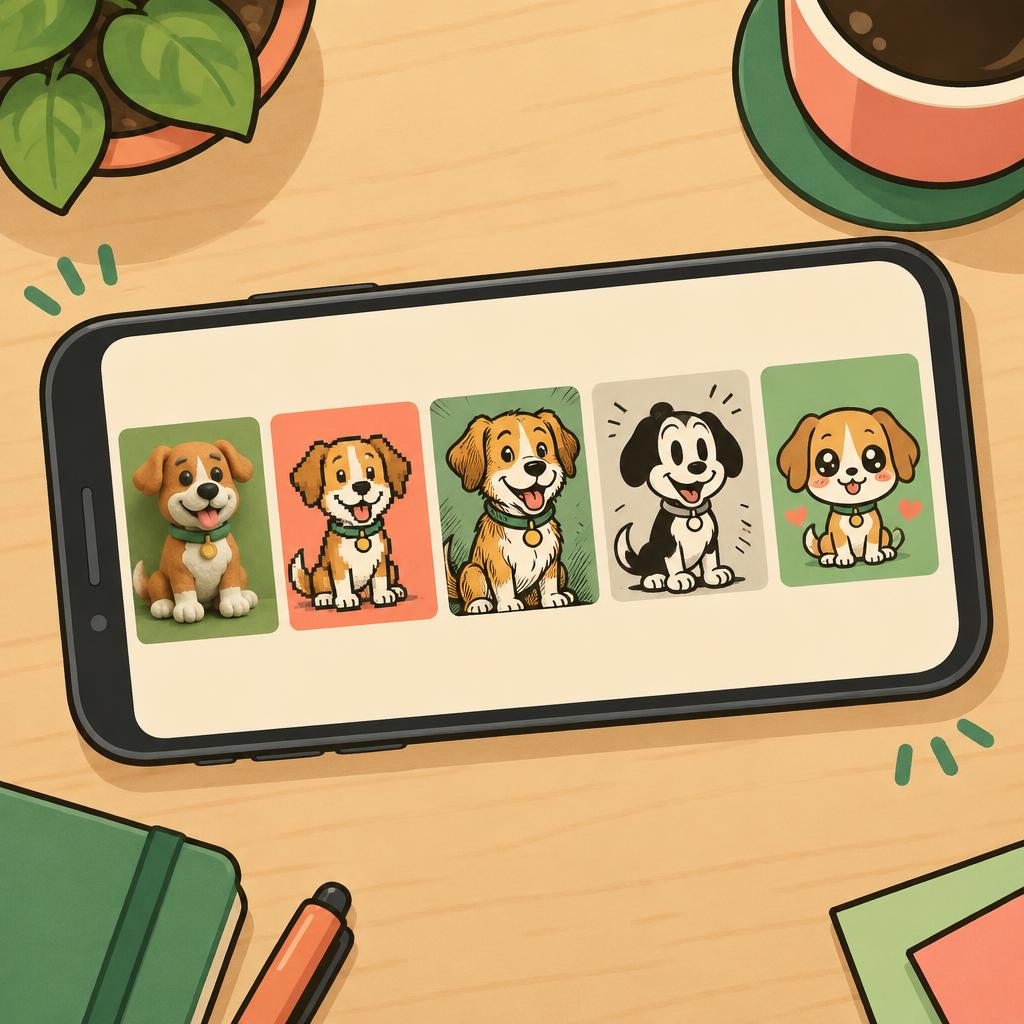
Dappi's cartoon styles each suit a different kind of joke, so pick the style first and build the idea around it:
- 3D cartoon draws you like the hero of an animated film. A sneeze so big that it blows out every candle and sends the birthday cake spinning off the plate suits it well.
- 1930s cartoon makes you an old black and white character with rubber hose arms. Picture yourself in white gloves, tipping a tiny hat, then tap dancing up a staircase that grows out of the floor.
- Clay turns you into a handmade clay figure. You could squash flat like dough when someone says Monday, then pop back up to full height.
- Comic draws you in comic book ink and colour. It fits a big entrance, such as bursting through the edge of the panel with speed lines behind you and a coffee held up like a trophy.
- Pop pastel uses bold comic lines and soft pastel colours. Give yourself a little cloud that rains marshmallows into your open mouth.
- Chibi and Chibi sticker make you a small, cute character. Spin in an office chair until you float off the seat like a balloon.
- Pixel art turns you into a retro game character. Jump to grab a row of gold coins while a glow fills the screen.
For ideas like these, choose Premiere or Premiere Lite, because both take long, detailed prompts, and Premiere Lite is faster at a lower resolution. Describe the action step by step and give each step a time inside the length you picked, such as the sneeze at 1 second and the cake spinning by 3 seconds. Then add the expression, how the camera frames it and the sound you want. You hear the sound in the app, and a sent sticker or GIF plays without it. The more you describe, the closer the sticker gets to what you imagined.
For a pet, Premiere is the better choice, and the prompt needs a bit more detail: the animal, its body, its face and what happens around it. Classic is for everyday stickers and works best with one short, simple action, so for Classic, use the prompts from Dappi's own Classic recipes on the Home page. A recipe is a ready idea, with the prompt and settings filled in, that you use with your own photo.
Make the stickers you will send every day, such as your yes, your no and your on my way, so one cartoon of you lasts a lifetime of chats.
Put your cartoon in a whole new scene
To start the sticker somewhere completely new, such as you as a cartoon astronaut walking a cat on the moon, tap AI Pro at the top of Create. Like styles, AI Pro comes with credits or a monthly plan. It uses the same Style row, but it makes a new picture from your photo and your words, with the scene, pose and outfit you describe. Write how the first frame looks and tap Generate Image. If it is not right, tap Edit picture to change one thing or New picture to start over. When you have the picture you want, tap Step 2: Animate, write what happens and tap Generate Sticker.
On the sticker page, tap iMessage to send your cartoon as a GIF, or tap WhatsApp, then Copy sticker, and paste it into a WhatsApp chat, where it arrives as a WhatsApp sticker. For a GIF file you keep, tap the download button at the top of the sticker page and tap Save as GIF. The guides to animated iMessage stickers and animated WhatsApp stickers on iPhone have every sending step.
Dappi is an independent app. It is not affiliated with, endorsed by, or sponsored by WhatsApp LLC, Meta, or Apple. WhatsApp is a trademark of WhatsApp LLC.