
Ways to make Christmas stickers and GIFs on iPhone
The best way depends on what you start from and where you send the result.
| Start from | Way | You get |
|---|---|---|
| Nothing | Sticker apps, GIF search | Ready Christmas art |
| A photo | Photos, WhatsApp, Markup | A still sticker or photo with Christmas extras |
| A Live Photo or video | Live Sticker, Make GIF, WhatsApp GIF | An animated sticker or GIF |
| A GIF | GIF maker apps, copy and paste | A GIF with captions, or a WhatsApp sticker |
| Faces in photos | Elf Yourself and face apps | A dance video |
| A photo and an idea | AI tools and Dappi | A picture, sticker or GIF of the scene you describe |
Ready made Christmas stickers and GIFs
Messages has its own App Store inside the app, where you add Christmas sticker apps that sit next to your other stickers. Apple's guides give these steps, checked on November 12, 2026:
- Open a conversation in Messages and tap the plus button next to the message box.
- Tap Store, then search for Christmas stickers.
- Open an app's page, read what it shows, and tap Get.
- Back in the conversation, tap the plus button, find the new sticker app in the list and tap a sticker to put it in the message box.
Most Christmas sticker apps we found in the App Store on November 16, 2026 were small sets of ready art. Their pages often say "Only for iMessage", so the stickers do not reach WhatsApp, and most had very few ratings. Check the screenshots before you pay for one.
For a Christmas GIF in iMessage, tap the plus button, tap #images, tap Find images and search a word such as Christmas, reindeer or Santa. Apple lists the countries where #images works, which on November 8, 2026 were the United States, United Kingdom, Canada, Australia, New Zealand, Ireland, France, Germany, Italy, India, Singapore, the Philippines and Japan. In WhatsApp, tap the Stickers icon, tap GIF and search for Christmas. GIF apps such as GIPHY and Tenor are free on the App Store and have their own Christmas GIF search.
Make a Christmas sticker from a photo
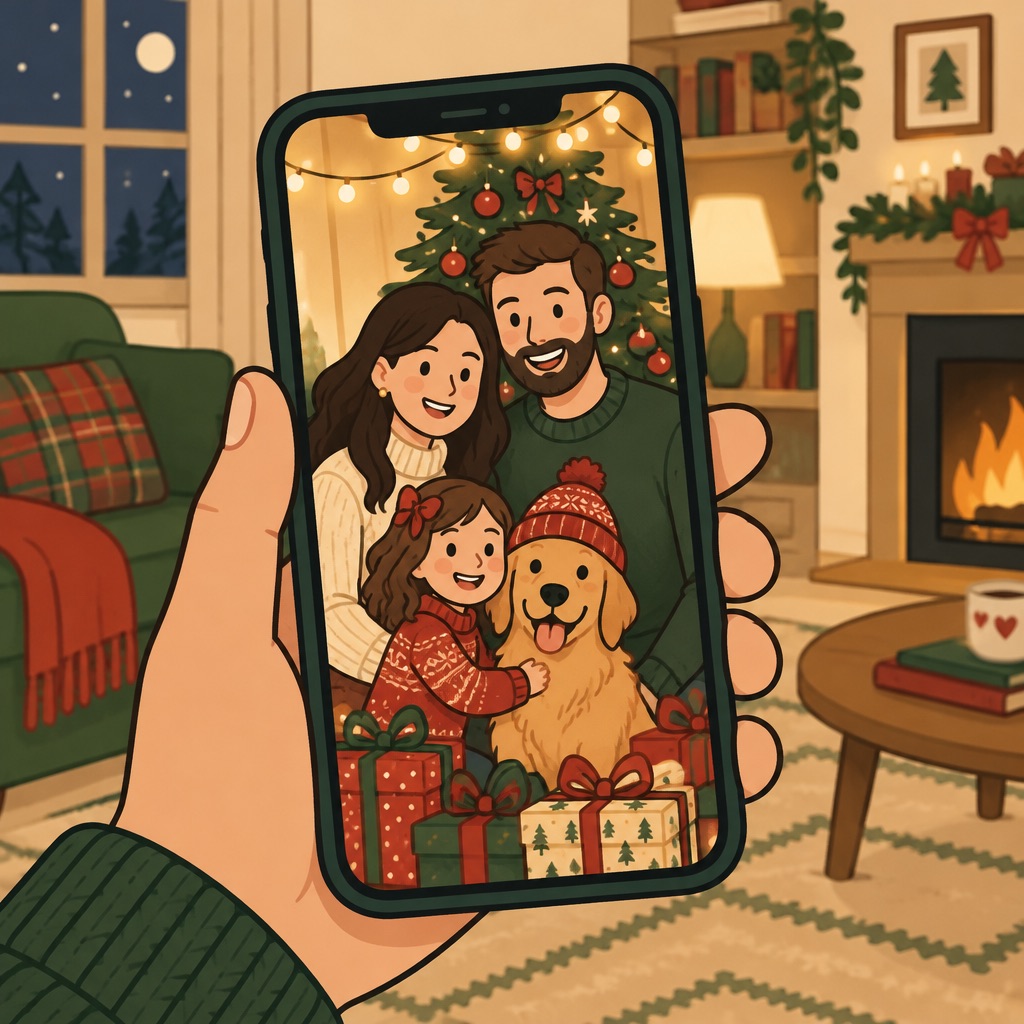
A photo of your family or your pet becomes a Christmas sticker once you cut out the person and add something festive, and the iPhone and WhatsApp can both do it with no extra app.
In the Photos app
Apple's guide to making stickers from your photos gives these steps for iOS 17 or later, checked on November 8, 2026:
- Open a photo in the Photos app.
- Press and hold on whoever you want in the sticker, a person or the dog, and lift your finger.
- Tap Add Sticker.
- Tap Add Effect if you like, and choose a look such as Comic or Shiny.
The sticker goes into your stickers in Messages and on the emoji keyboard. To dress it up in the chat, send it, then drag a Santa hat or a snowflake sticker from a Christmas sticker app onto that message bubble, turning and pinching it with a second finger as you drag. Our guide to photo to sticker on iPhone has the full steps.
In WhatsApp
WhatsApp's sticker maker adds emoji, text and drawings on top of your photo, which is all a Christmas sticker needs. The steps below follow WhatsApp's Help Center, as we read it on November 16, 2026:
- Open the chat and tap the Stickers icon in the message box.
- Tap Create, then tap Use a photo.
- Pick a photo from your library.
- Decorate it on the preview screen with emoji, a line of text or a drawing.
- Tap the send button.
Put a Santa hat emoji on the dog, draw a red nose on dad, write Merry Christmas from all of us across the bottom, and scatter a few snowflake emoji around the edge. The Help Center never calls this photo sticker animated, so plan on a still one. In some countries and languages, WhatsApp also makes up to four stickers from words you type: tap the Stickers icon, then Create and Generate with AI, and type something like a penguin in a scarf.
With Markup, for a Christmas photo card
Markup in the Photos app writes on the photo itself, so you send the result as a photo. Open the photo, tap Markup if you don't see its toolbar, open the add menu and tap Add Text, type Merry Christmas and pick a bold font and a red or gold color, then tap Done. Apple's iOS 27 guide to Markup gives these steps, checked on November 8, 2026. The guide to adding text to a sticker has tips on text that stays easy to read.
Memoji and Genmoji
Apple's Memoji guide, checked on November 8, 2026, says an animated Memoji copies your facial expressions and your voice, on supported models only. In a conversation, tap the plus button, tap Memoji, choose one and tap record. Apple's Genmoji guide, checked on November 8, 2026, says you make a Genmoji from a description or from a person in your photos and can send it as a sticker, so you could describe a cat in a Santa hat. Genmoji needs Apple Intelligence on an iPhone 15 Pro, iPhone 15 Pro Max or an iPhone 16 model or later, and the guide does not describe Genmoji as animated.
Make a Christmas GIF from a video or Live Photo
A Christmas GIF or animated sticker of your own people starts from a few seconds you film, so plan the moment before you press the shutter:
- Put the Santa hat on, look at the camera and pull it down over your eyes.
- Film the dog the moment the reindeer antlers go on, with the slow, betrayed look that follows.
- Catch a child tearing the paper off a present, at the second the box opens.
- Have the whole family jump at the same time in matching Christmas jumpers.
Keep it to two to five seconds, and end where you started, such as a wave or a nod, so the GIF loops without a jump.
A Live Sticker from a Live Photo
A Live Photo turns into a Live Sticker that plays in Messages, with the same Add Sticker steps in the Photos app. You and the people you message need iOS 17.2 or later to see it play, as Apple's guide to sending stickers says, checked on November 8, 2026. In the Photos app you can also tap the Live Photo button and choose Loop or Bounce, which plays the clip inside Photos without making a GIF file. Bounce suits a snowball throw, because the snowball flies out and comes back.
A GIF file with the Make GIF shortcut
Apple's Make GIF shortcut turns a video or a Live Photo into a GIF in your photo library, with no extra app. These are the steps that how to guides for the Gallery shortcut agree on, checked on November 13, 2026:
- In the Shortcuts app, tap Gallery along the bottom of the screen.
- Type gif in the search, open Make GIF and tap Add Shortcut.
- Open the Shortcuts tab, where the new shortcut now sits, and tap Make GIF.
- Pick your Christmas video or Live Photo, and allow access to your photos the first time.
- Set the start and end of your Christmas GIF with the two ends of the slider, then tap Save and Done.
Our guide to making a GIF on iPhone covers GIFs from several photos and from screen recordings.
A GIF in WhatsApp
WhatsApp turns a video under six seconds into a GIF as you send it. Open the chat, tap the plus button, tap Photo & Video Library and pick the video, trim it under six seconds with the slider if needed, tap GIF in the top right corner and tap Send. The button names can differ between WhatsApp versions. For a Live Photo, touch and hold it in the same library and tap Select as GIF, as WhatsApp's guide to creating GIFs explains.
Christmas captions and stickers on a GIF
A GIF maker app adds the Christmas extras the shortcut cannot, such as a caption, stickers and filters. On their App Store pages, checked on November 13, 2026, GIF Maker by ImgPlay lists captions, stickers, drawing and filters, and GIF Maker by Float Tech lists trim, crop, speed, captions and filters. Both are free to download and sell extras inside the app, so make one test GIF and save it before you pay.
Turn a Christmas GIF into a WhatsApp sticker
A GIF you already have can become an animated WhatsApp sticker by copy and paste. Send the GIF in any WhatsApp chat, touch and hold it and tap Copy, then tap the message box in the chat you want and tap Paste. WhatsApp's Help Center for iPhone does not describe pasting a GIF, so this route comes from several how to guides that agree on it, checked on November 14, 2026. The guide to turning a GIF into a WhatsApp sticker has the details and the other ways to copy a GIF.
For a set of Christmas stickers in your sticker tray, a sticker maker app from the App Store adds them for you. WhatsApp's rules for animated sticker sets say every sticker in the set is animated, each one is 512 by 512 pixels, at most 500 KB, and its animation lasts no more than 10 seconds. The guide to animated WhatsApp stickers on iPhone covers the other ways to make one.
Elf Yourself and other Christmas face apps
Elf Yourself puts the faces from your photos onto dancing elves and makes a short video to share. Its App Store page, checked on November 16, 2026, says you add up to 5 faces and pick a dance, and lists the app as free to download, with most dances sold as in app purchases. The result is a video, and the page does not mention GIFs. For the best result in Elf Yourself, use a photo where each face looks straight at the camera in good light, with no sunglasses and no hand near the face.
- JibJab makes Christmas cards, videos and GIFs that star the faces you add. Its App Store page, checked on November 16, 2026, says free GIFs are always there to view and share, and it sells an All Access subscription.
- Christmas dance apps such as Xmas Dance put faces from your photos on 3D dancing elves. Recent App Store reviews of Xmas Dance, from November and December 2025, say the free version is limited to two people and asks for payment before you see the final video.
Between the Xmas Dance reviews and the paid dances in Elf Yourself, the cost often shows up after you have set everything up. Check the in app purchases on an app's App Store page before you start, so the price does not surprise you on Christmas Eve. To send a short part of a dance video as a GIF, save it to Photos and use the WhatsApp GIF steps above.
AI Christmas pictures and GIFs from your photo
AI tools on the web and in chat apps can put your photo into a Christmas scene, and some of them give you a still picture.
- Magic Hour has Christmas face swap videos with ready made scenes and a Santa hat filter that works in a phone browser. Its Santa hat filter page, checked on November 16, 2026, says it gives a still picture and allows 3 free uses a day without an account.
- Adobe Express has ready made Christmas GIF designs and holiday stock clips on its free plan. Its page, checked on November 16, 2026, says you can upload your own photo or video and download the result as a GIF. You build the animation yourself from the design.
- ChatGPT and Gemini can redraw a photo you add, as their App Store pages say, checked on November 15, 2026, so you can ask for your family as Christmas elves in a snowy workshop, then save the picture and turn it into a sticker in the Photos app. The guide to turning a photo into a cartoon on iPhone shows how to keep the faces recognisable.
Your photo goes to the company behind the tool, so choose a photo that everyone in it is happy to share.
Funny Christmas sticker and GIF ideas
Start with the replies you need every December: Merry Christmas, thank you for the present, on my way to dinner, and too full to stand up. Make one sticker or GIF for each, so you have a reply ready whenever the family chat lights up.
Then push each one further than the obvious:
- Skip the plain Santa hat: you are stuck halfway down a chimney, legs kicking, with a puff of soot every time you wriggle.
- The cat stares into the camera while it knocks the baubles off the tree, one at a time.
- Grandpa DJs the Christmas party, scratching a giant gingerbread biscuit on the turntable.
- For a thank you, you open a tiny present and a whole reindeer climbs out of it.
- The dog pulls a sleigh full of presents across the living room carpet, with the family inside it.
The cat and the Santa hat work as Live Photos. The chimney, the reindeer and the sleigh need an AI sticker app, which the last part of this guide covers.
Christmas sticker and GIF mistakes to avoid
Most Christmas sticker and GIF problems show up only after you send, so these are worth checking first.
- A sticker app that says "Only for iMessage" works only in Messages, so check the App Store page before you buy one for the WhatsApp group.
- A GIF that you copy from a GIF app and paste often arrives as one still frame. Save the GIF to Photos first, then attach it from your photos.
- A Live Sticker plays only for people on iOS 17.2 or later, so an older phone in the family sees a still picture.
- A long clip makes a large GIF that loads slowly, so keep Christmas GIFs to a few seconds.
- A face dance app makes a video, which arrives in the chat as a video message and stays out of the sticker tray.
- A sticker made on Christmas Eve leaves no time to fix a bad cut out, so make your set in early December and test one on yourself.
Make Christmas stickers and GIFs with Dappi
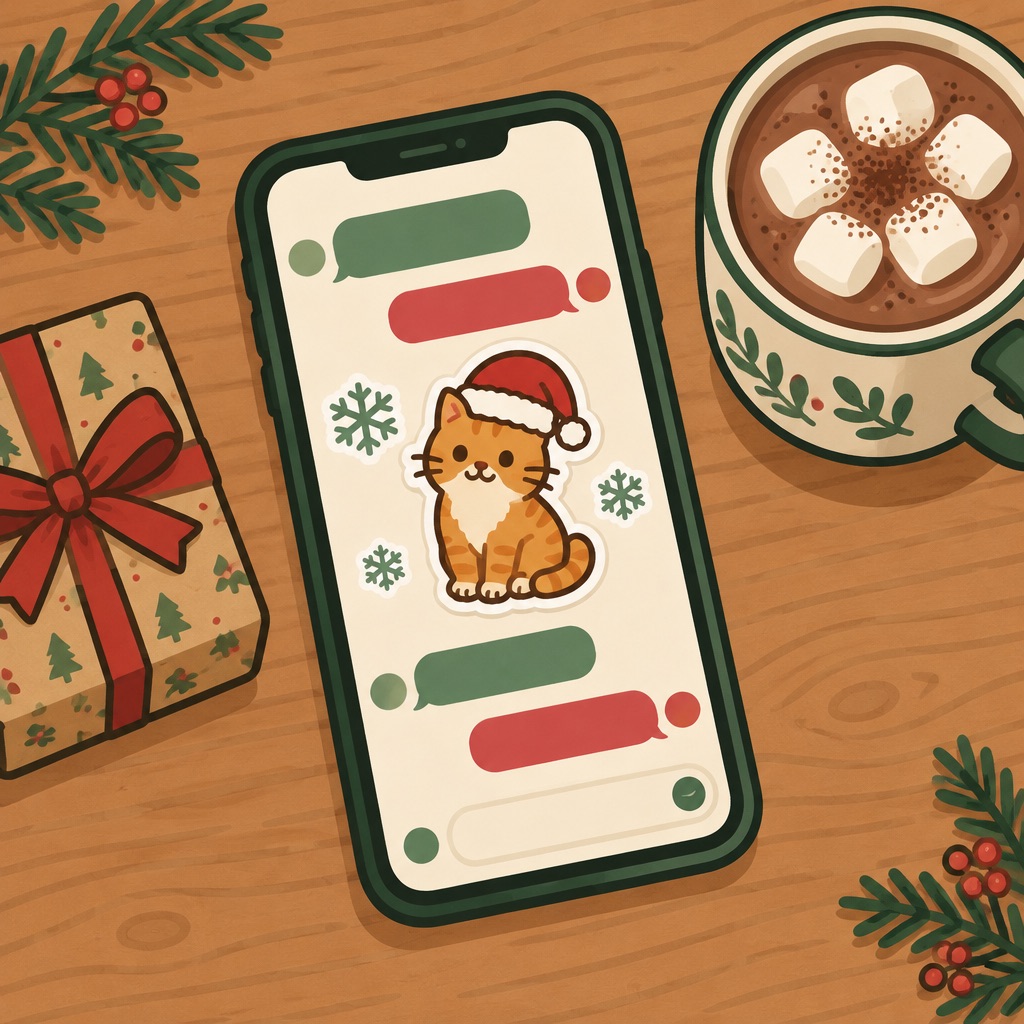
Dappi, a sticker and GIF app for iPhone, makes Christmas stickers and GIFs with AI from your own photo. With AI Sticker, you pick a photo of your family or your pet and write the Christmas moment you want, such as everyone throwing snowballs at the camera or the dog pulling a sleigh, and you get a short animated sticker with your own people in it.
For a regular Christmas sticker without AI, the editor works on any photo or clip you already have, so you can add a name in animated text or put your family in front of a new background for free. The same editor opens on a finished AI sticker as well, so a snowball sticker can still get Grandma's name on it.
Send your sticker in iMessage, where it arrives as a GIF, or copy it into a WhatsApp chat, where it arrives as a sticker. The guides to animated iMessage stickers and animated WhatsApp stickers on iPhone show how.
Dappi is an independent app. It is not affiliated with, endorsed by, or sponsored by WhatsApp LLC, Meta, or Apple. WhatsApp is a trademark of WhatsApp LLC.